
Have you ever had a customer return a rental product late by a day, week or even a month? Stated on your rental contract should be the charges for overdue rentals.
Use the Destroyed, Missing and Damaged values inside of a rental return to properly charge the customer.
Example:
Breanna has rented a bridesmaids dress for her friend's wedding from Helens Bridal Salon. She had a hectic week and ended up bringing in her bridesmaids dress a whole week late from when it was to be returned.
Helens Bridal Salon has an overdue rental policy that states each day the rental is overdue is an additional $5.00 charge.
In this case, Breanna's rental is (7 x $5.00 = $35.00) overdue.
The staff at Helens Bridal salon simply checks-in the overdue item and adds the fee charge to the item in the overdue pricing field.
An invoice is created and paid then by Breanna.
Steps:
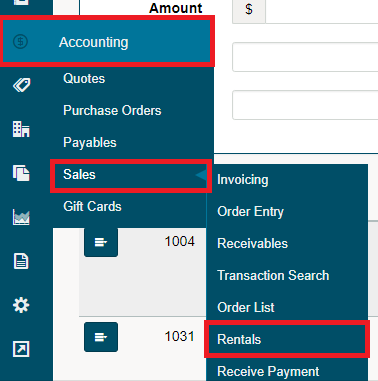
Hover the Accounting Module on the left-hand menu followed by hovering over Sales in the drop-down menu and then clicking on Rentals. This will bring you to a list of all rentals.
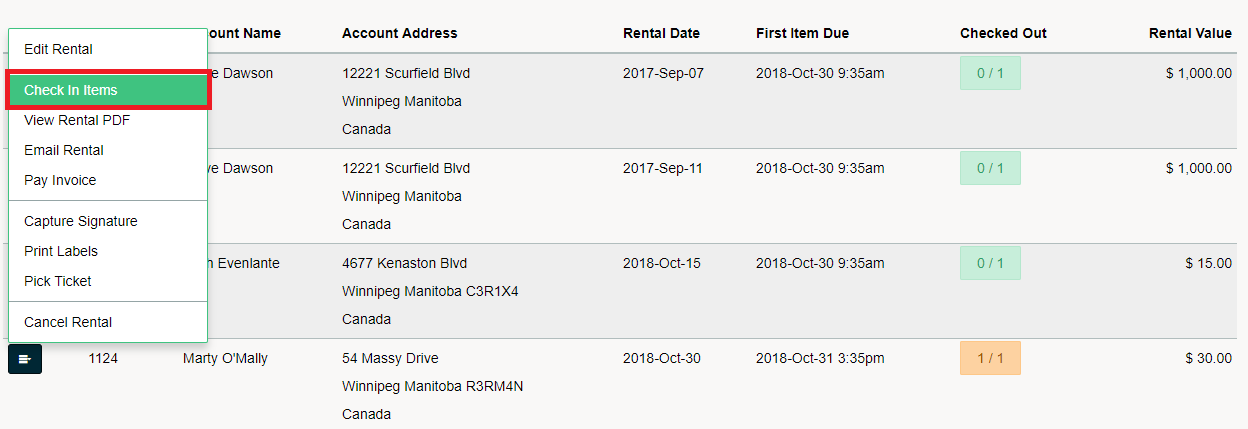
Click on the blue button beside the rental you wish to return and add destroyed or missing value to. In the drop-down menu click on Check In Items. You will notice that overdue rentals will be highlighted in red.
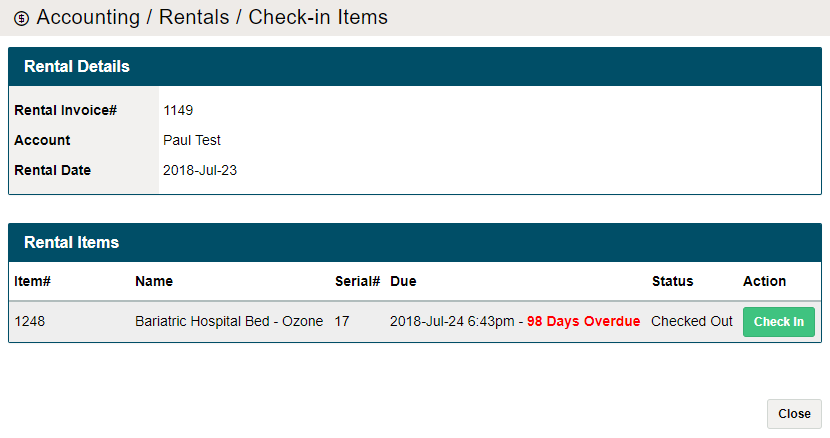
In the new window, click on the Check-in button beside the item you wish to check in. You will be able to see how many days each product is overdue on this screen.
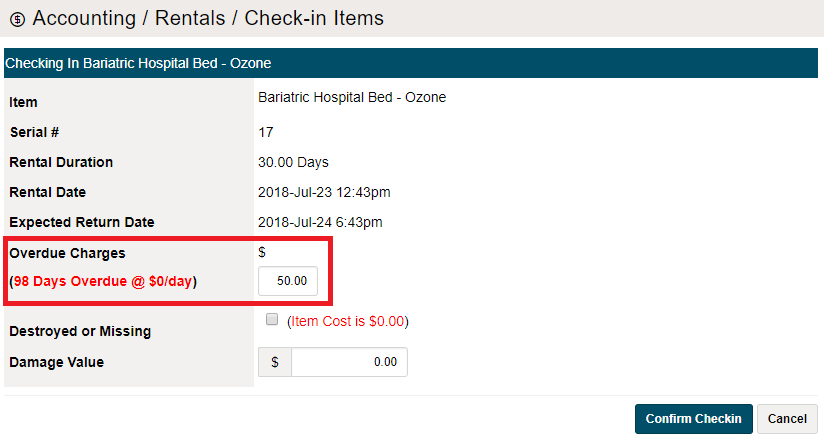
In the check-in window, add the overdue charges to the rental. A new invoice will be created when you click the [Confirm Checkin] button. To pay the invoice, use the same steps as paying a regular invoice.
Comments
0 comments
Please sign in to leave a comment.