
Need to add new equipment to your rental fleet? Follow along to learn how to create a new rental product.
Steps
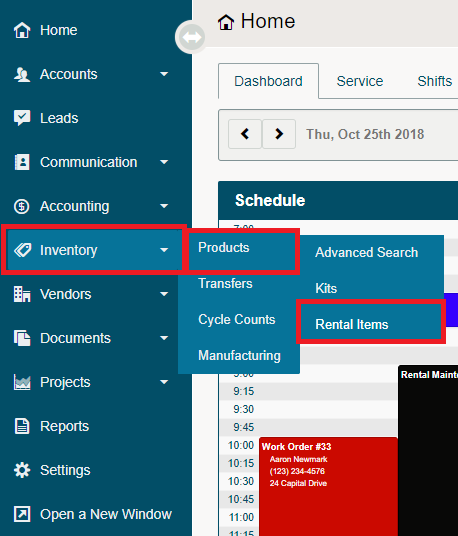
Hover over the Inventory Module and then hover on Products, and then click on Rental Items. You can also click on Inventory, wait for the Inventory screen to appear, then click on Rental Products.
In the top right corner, click the [+ New Rental Product] button.

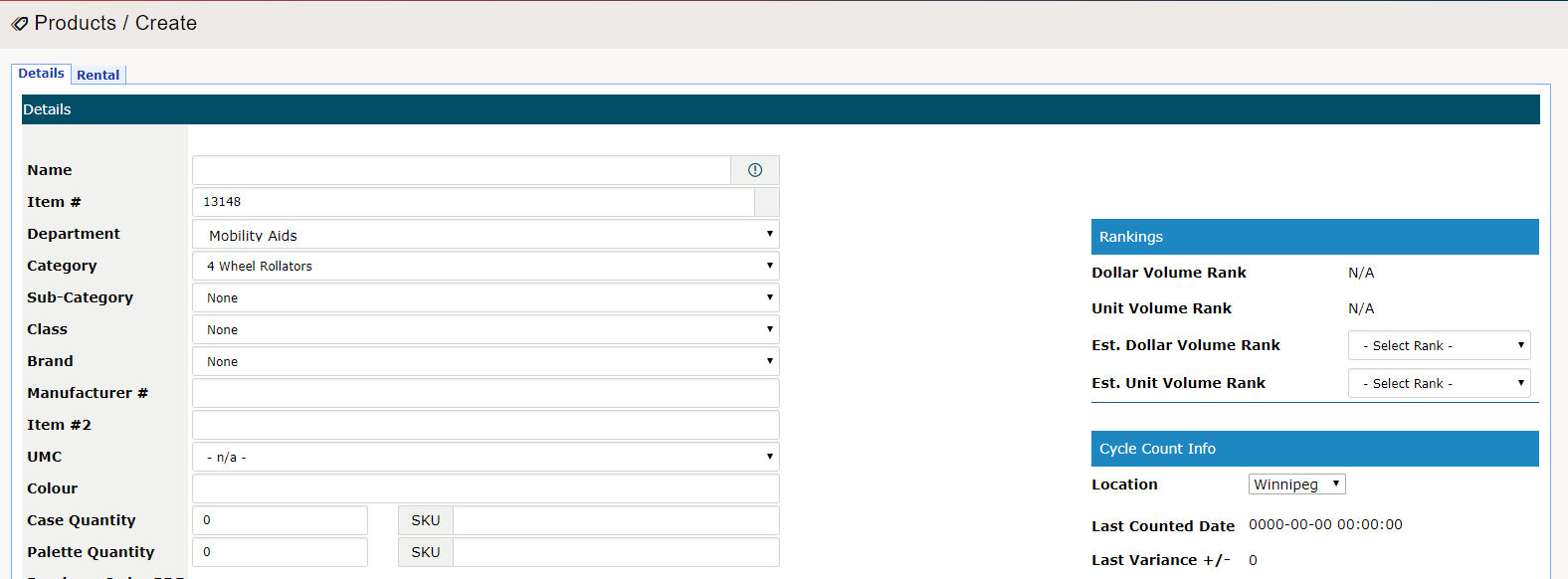
Inside the Details tab, fill out the desired fields to create the new product. Ex: product name, category, brand, item #, physical dimensions etc. Finish by clicking on the Apply button, this will generate more tabs with more trackable information.
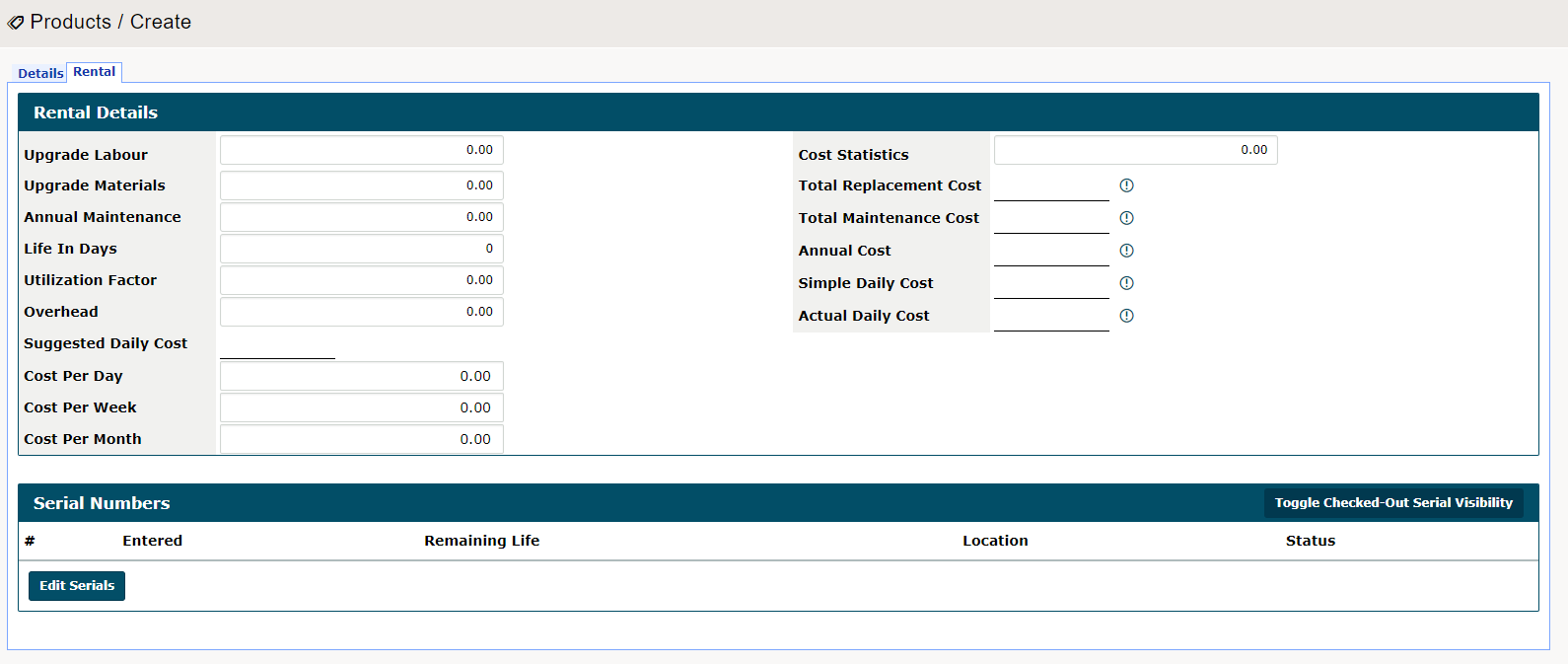
Next, click on the Rental Tab and fill out the information applicable to the rental.
Be sure to include the Cost Per Day, Cost Per Week, Cost Per Month to rent out the rental item. These prices will directly relate to the rental quotes and invoices.
Click on the apply button to stay inside the Rental Product as more Tabs will populate where you can add additional information.

How to Add and Edit Serial Numbers of a Rental Product
Comments
0 comments
Please sign in to leave a comment.