
Prior to using the rental system, you must have the Product Rentals Module enabled. Click here to learn how to enable the rentals module.
Steps
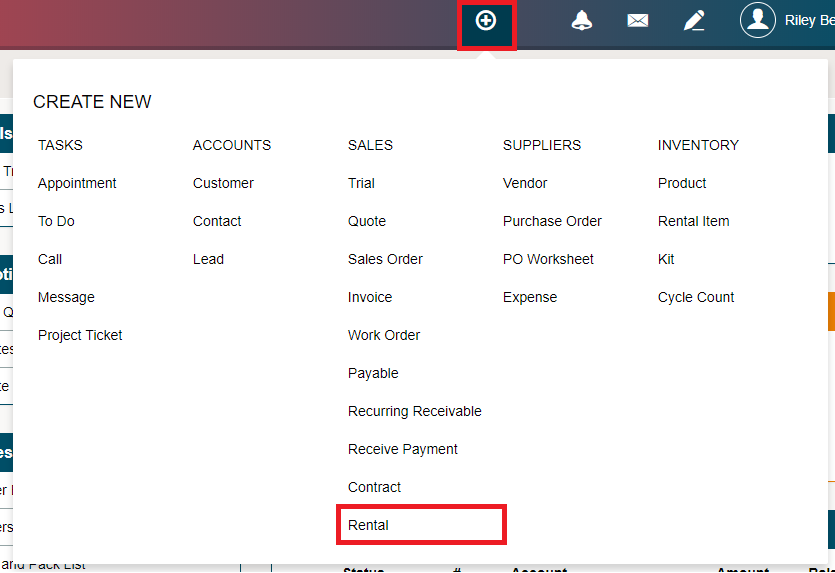
Click on the Quick Create button located in the top right-hand corner. Then click Rental from the Quick Create Menu.
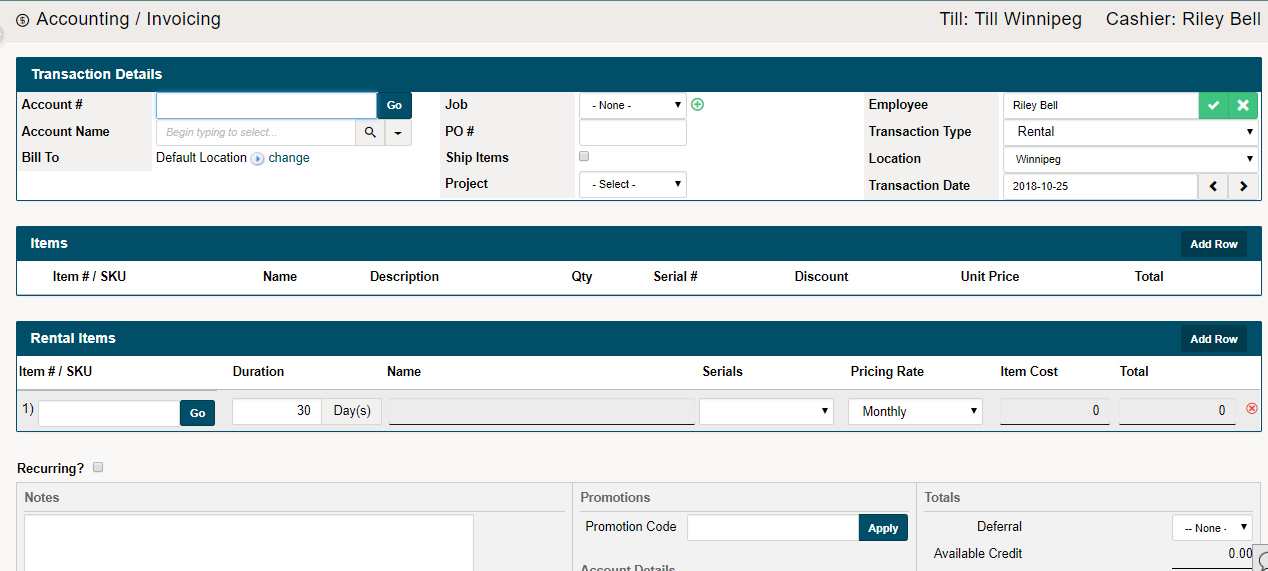
A new Rental Window will appear. Complete the fields, with (*) being mandatory fields.
- *Customer/Account Name
- Bill To
- Job
- PO#
- Ship Items
- Project
- Rental Items
- *Item #/Product Name
- *Duration
- *Serials
- *Pricing Rate
- Recurring
- Notes
- Override Region
Choose [Complete Transaction] listed at the bottom of the page.
Paying at Time of Rental - Private Pay Customer
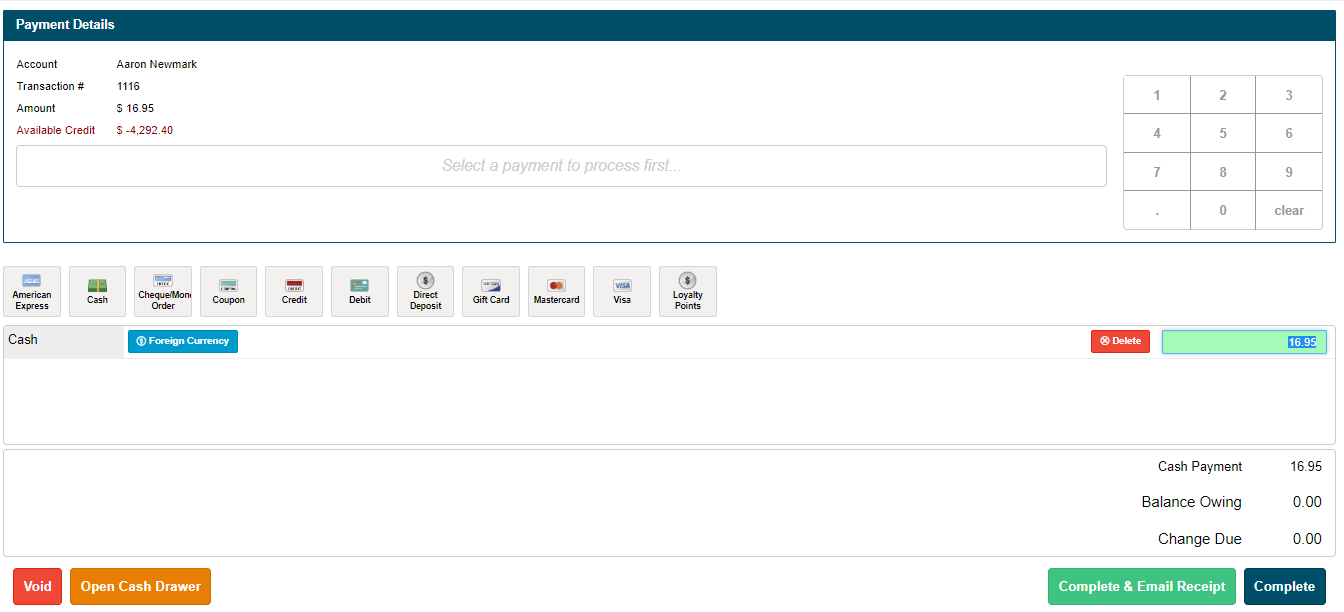
A cash till will appear. Enter the type of payment applicable to the customer. You will be able to see the total amount at the top of the cash register. You can at this time complete the transaction or complete & email receipt (customer must have an email on file)
The rental will now be listed on the rentals list at the bottom of the rentals listing page.
Click here to learn how to check rental items back in
Paying after Time of Rental - 3rd Party Paying for Customer or When rental is Returned
Some customers will not pay when the rental is provided, rather their insurance provider or a third party will cover the cost of the rental for the customer with a provided invoice.
When the cash register appears to take the payment of the customer, simply bypass this step by exiting out of the cash register window.
This will list the rental in the rentals page with an attached value that can be paid for when the customer returns.

Pay the Invoice first when the customer comes back with the products. If it is a 3rd party paying for the rental items they can pay for the invoice at the time of your choice.
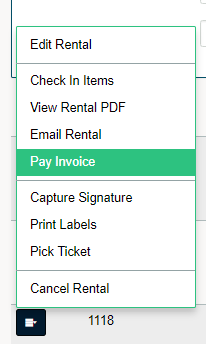
The cash register will appear, at which time you can take payment. Click on the listed payment methods to enter the payment for the rental.
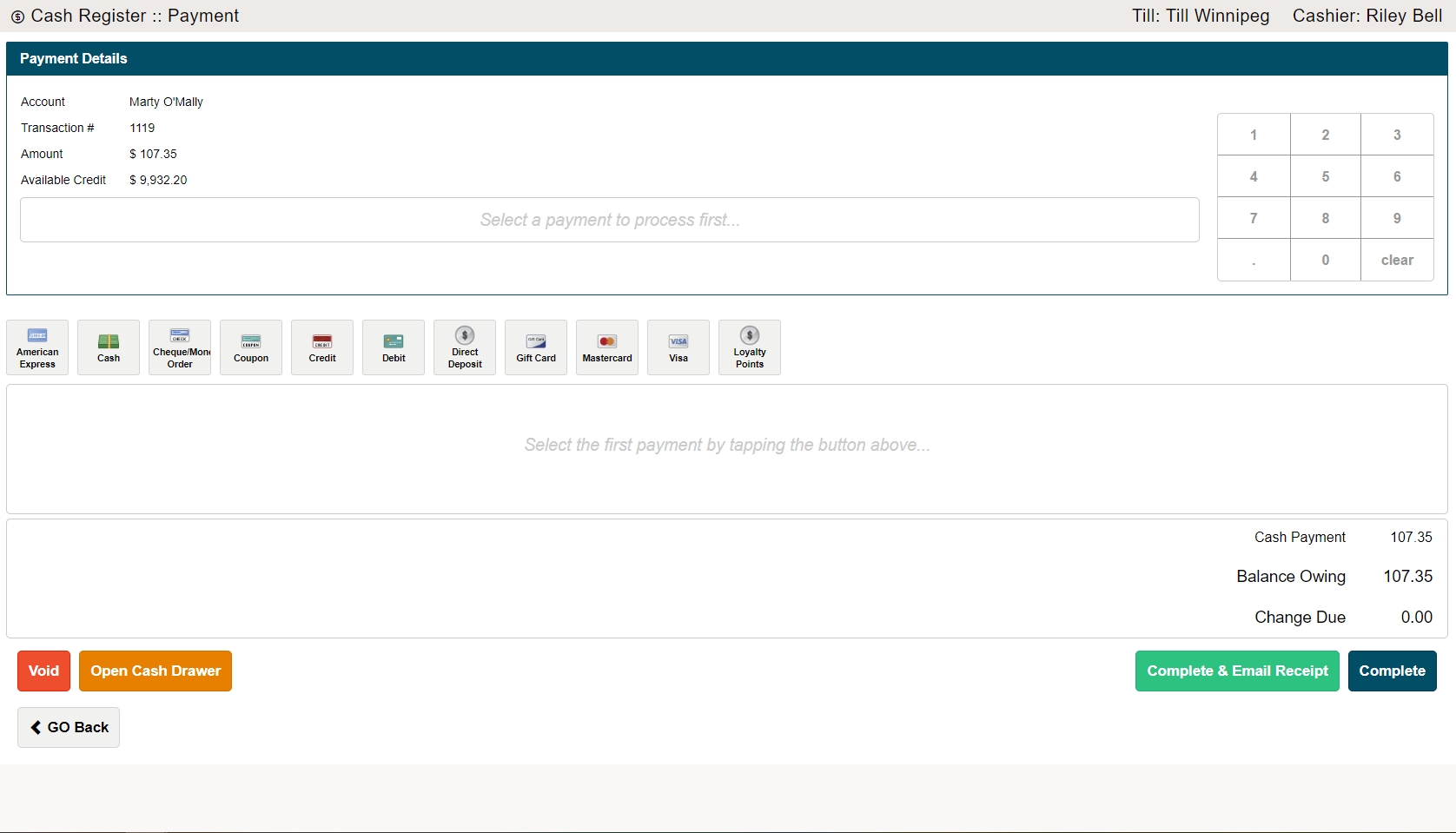
If there is a split between the 3rd party and the customer you can proportionally select the amount each party is paying. Simply type into the cash register the amount the 3rd party and the amount that the customer is paying.
Check the outstanding items back into rental inventory.
Click here to learn how to check rental items back in
Comments
0 comments
Please sign in to leave a comment.