
Specification Templates - are set up in MEHD. They allow your sales managers to build forms that salespeople have to fill out, giving reference to the quote.
An example of this is a wheelchair assessment. When a new client is referred they are measured and fitted before the wheelchair is delivered. Keeping track of the product specifications is essential to quote the correct products.
If there are multiple scenarios or forms that are filled out for differing products, simply set up multiple Specification Templates, such as 'Power Wheelchair' and 'Manual Wheelchair'.
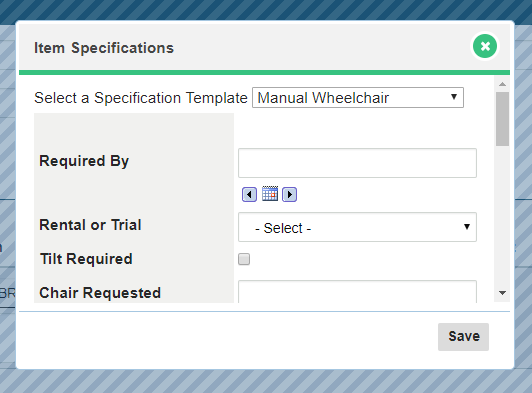
Specification Template Field Examples: Power Wheelchair
- Chair Requested
- Seat Width
- Back Cane Angle
- Joystick Side
- Joystick Type
- Front Seat To Floor
- Back Seat To Floor
- Armrest Type
- Adjustable footplates
- Seatbelt Size
(Field Types: Text Areas, Dates, Date & Time, Drop Down, Checkbox)
Steps:
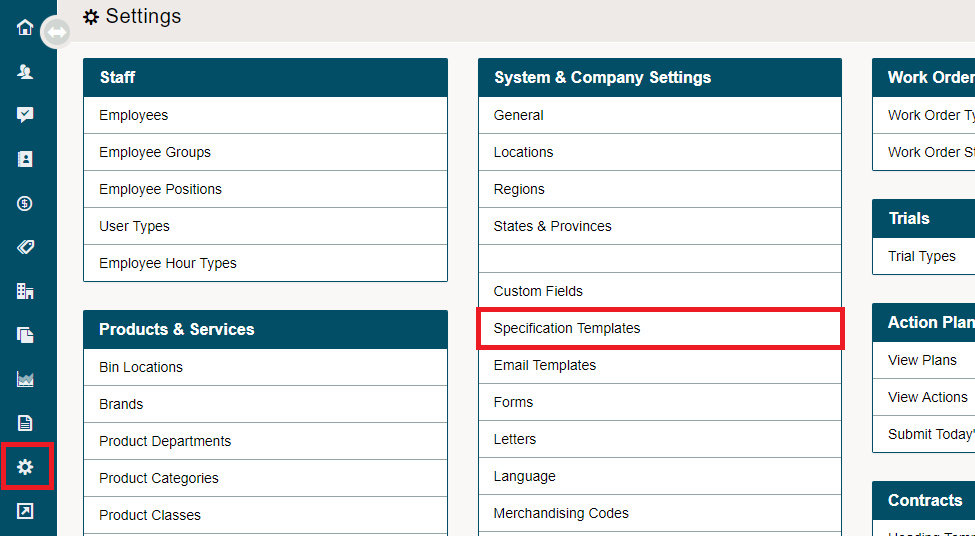
Go to Settings. Under the System & Company Settings Heading, choose Specification Templates.
Choose New Specification Template.

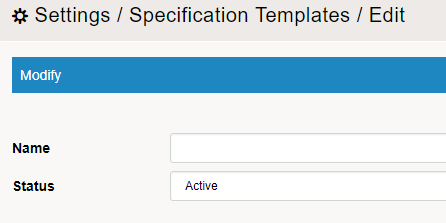
Name the Template. Choose Save in the bottom right corner.
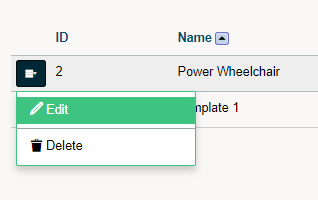
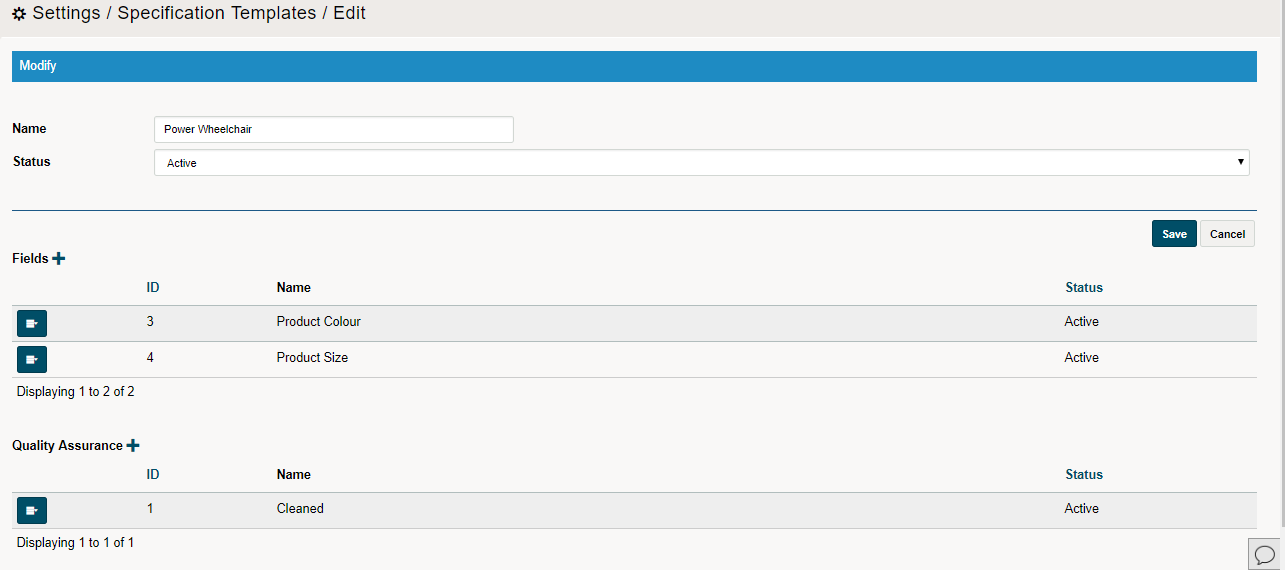
From the contextual menu next to the template, choose Edit.
Choose [+] beside the Fields or the Quality Assurance to add the questions that have been created in Custom Fields (learn more).
From the Custom Field drop-down, select the question that was created inside of the Custom Field setting.
Change the order of the questions that you would like to appear by dragging and dropping.
Choose Save to save the entire template.
Comments
0 comments
Please sign in to leave a comment.