
When a rental comes back, it needs to be paid for. Learn how to access the payment screen here.
Actions:
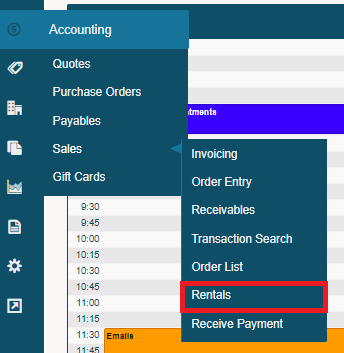
1. Hover over the Accounting Module, followed by sales, and finally clicking on Rentals.
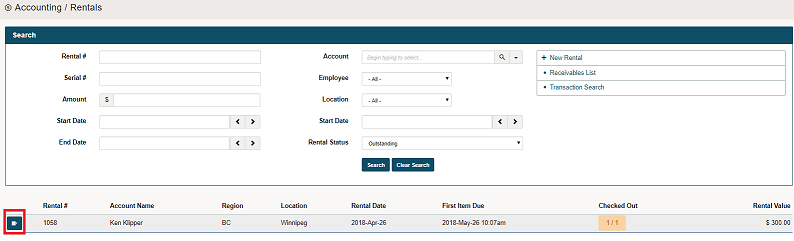
2. Click on the blue edit button beside the rental you wish to return and pay for.
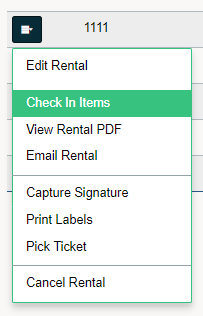
3. Click on View Check In Items.
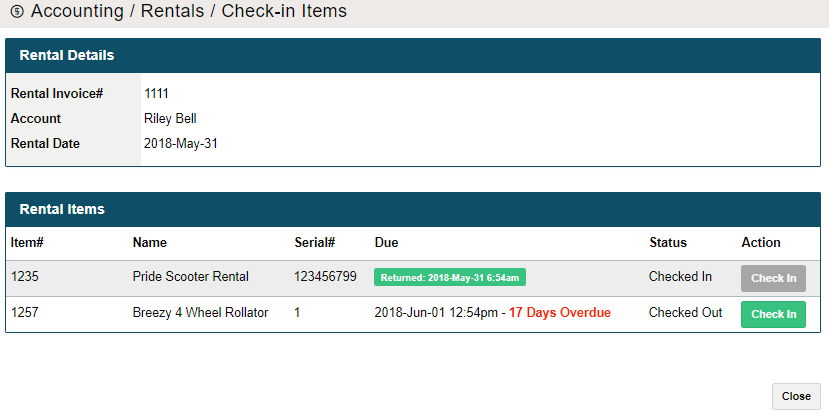
4. Click on the Green 'Check In' button to check in the items outstanding.
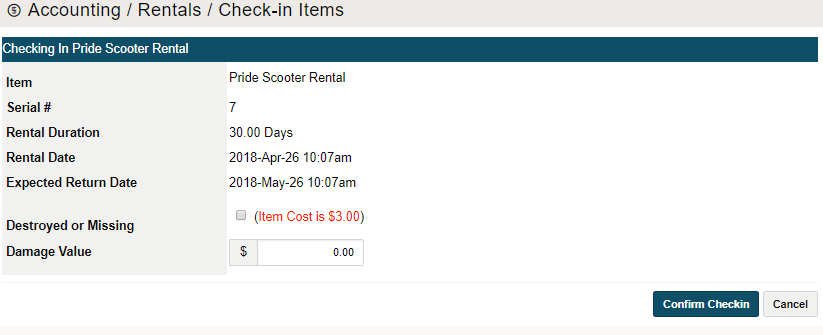
5. A new window will appear. Confirm the details and add a damaged value if needed. Finish by clicking on Confirm Checkin.
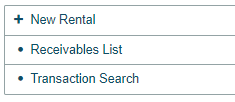
6. Click on the Receivables List in the top right of the screen.
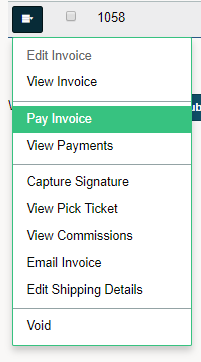
7. Click on the blue edit button beside the new invoice that was created for the rental, followed by Pay Invoice.
(To Learn How to Pay an Invoice Click Here)
Comments
0 comments
Please sign in to leave a comment.