
Have you ever had a customer return a rental product and accidentally damaged the product? Maybe they have even misplaced the product and cannot seem to bring the rental item back.
Use the Destroyed, Missing and Damaged values inside of a rental return to properly charge the customer.
Example:
Joe rented a plate compactor to compact a walkway that he put in at his house. He rented the plate compactor from his local hardware shop called Home Market. He went to bring back the plate compactor and noticed that he had accidentally pulled the starter cord.
In Home Markets rental contract it states that if the rental item is destroyed then the customer will pay the price for the part plus labour to order and service the rental item.
In this case Home Market lets Joe know that it will take:
- 1/2 to order the product @ $20.00 = $10.00
- 1/2 fix the product @ $20.00 = $10.00
- $10.00 for the product
- Totaling $30.00 to fix the pull cord
Home market enters the destroyed value when checking in the item and takes payment for the fix from Joe.
Steps - Destroyed or Missing
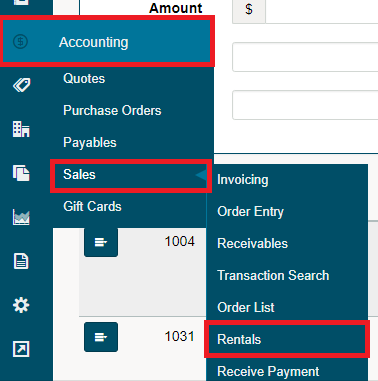
Hover the Accounting Module on the left-hand menu followed by hovering over Sales in the drop-down menu and then clicking on Rentals. This will bring you to a list of all rentals.
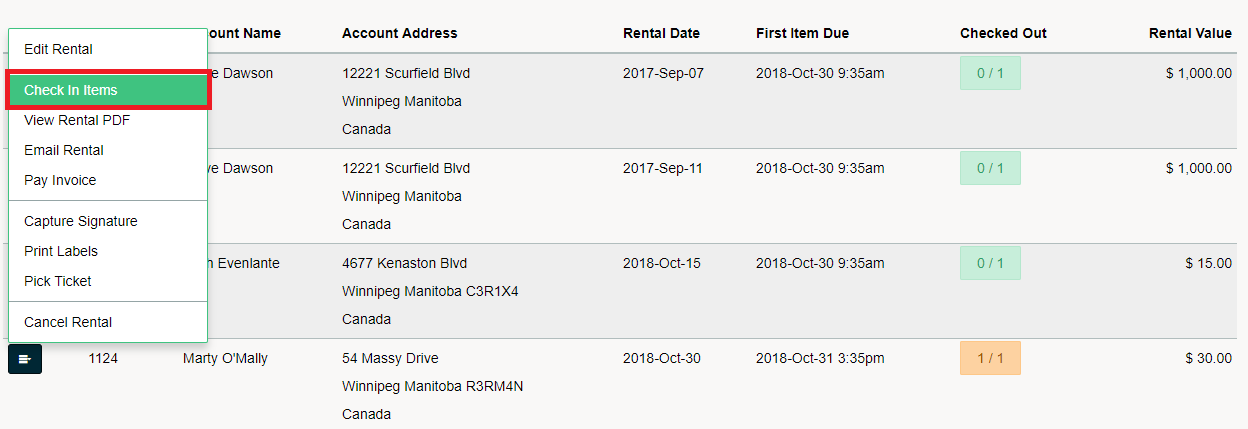
Click on the blue button beside the rental you wish to return and add destroyed or missing value to. In the drop-down menu click on Check In Items.
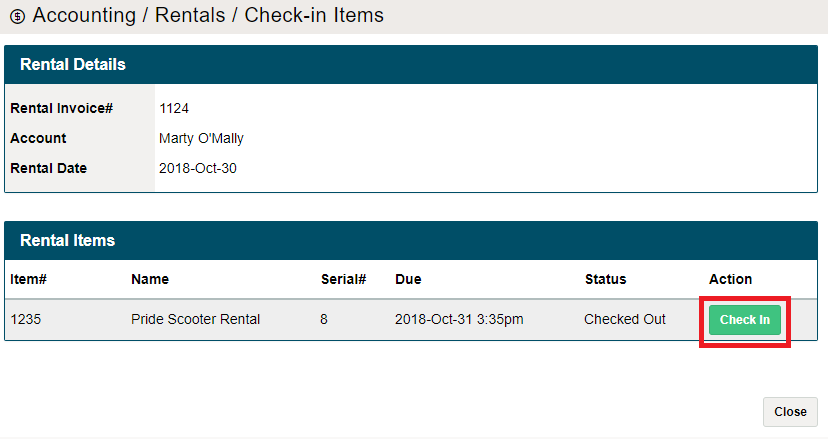
In the new window, click on the Check-in button beside the item you wish to check in.
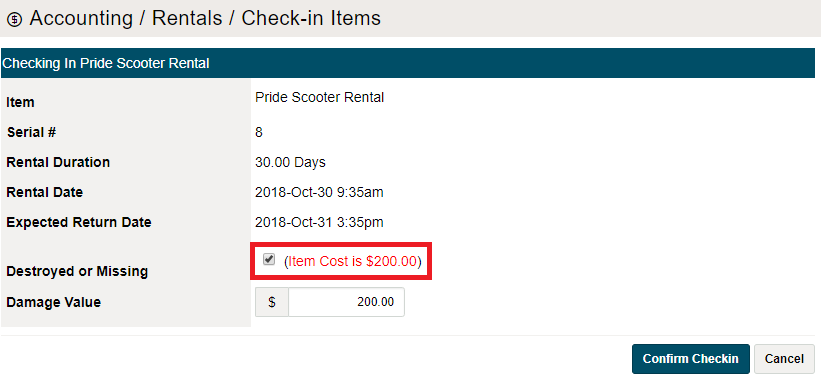
In the new Check-in window click on the checkbox beside Destroyed or Missing. This will add the value of the product to a new invoice. Click on the [Confirm Checkin] button.
An invoice for the total Destroyed or Missing amount has been created. Follow the steps to pay an invoice.
Steps - Damaged Rentals
Hover the Accounting Module on the left-hand menu followed by hovering over Sales in the drop-down menu and then clicking on Rentals. This will bring you to a list of all rentals.
Click on the blue button beside the rental you wish to return and add destroyed or missing value to. In the drop-down menu click on Check In Items.
In the new window, click on the Check-in button beside the item you wish to check in.
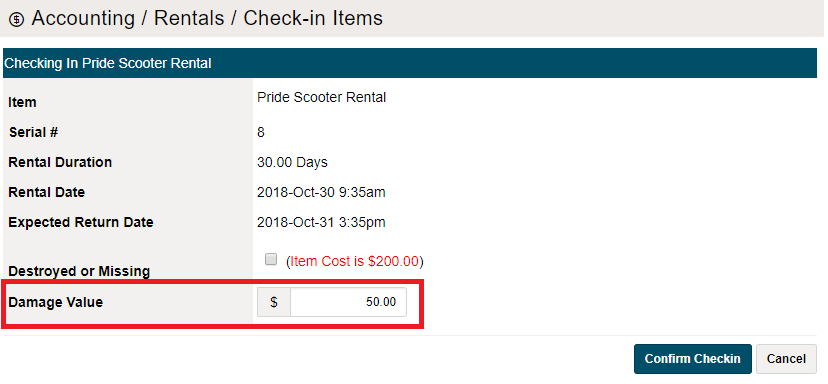
In the new Check-in window type in the Damage Value. This should be the value of the products needed to fix the rental item. Click on the [Confirm Checkin] button.
Comments
0 comments
Please sign in to leave a comment.