
Recurring Rentals are a great way to create maximum efficiency in you rentals department.
Simply set up the rental product(s) and attach a customer account. Finish by attaching a credit card on file for recurring billing.
This helps when a customer is not sure how long they will need the product for such as a customer that might need a wheelchair for (2) month, but also might keep the product for (3) months. With the customer's card on file, they will be charged the proper amount when the invoice is created.
In order to have recurring rentals set up the Recurring Receivables module in General System Settings will need to be turned on. To learn more click here.
Steps:
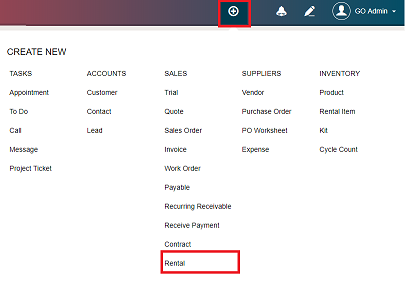
Create a new rental by clicking on the quick create button in the top header then on Rentals.
Fill out the customer information, and add the rental items (including the serial number, where applicable) to the rental form. Be sure to also set the duration of the rental and when it will recur (the same duration for all products), and the pricing rate. If 30 days is chosen, set the pricing rate to monthly.
At the bottom of the rental page be sure to check off 'Recurring'. A new Recurring Setting will appear. Fill out the recurring settings.
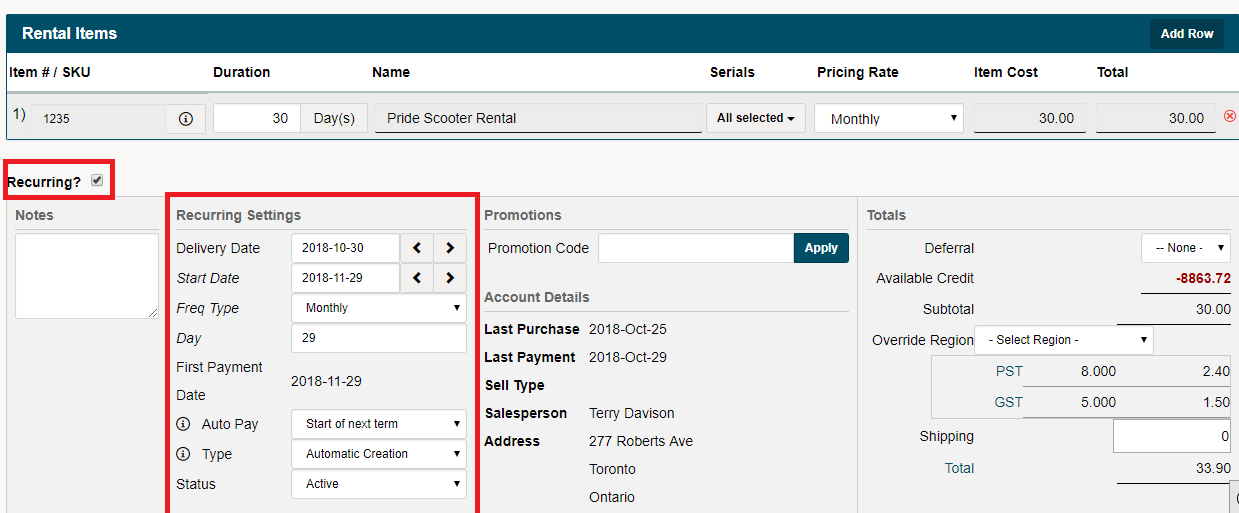
Mandatory Recurring Settings:
- Delivery Date
- Auto Pay
- Type
All other recurring settings are supplementary.
Recurring Rental Settings
- Delivery Date - Date the product will be delivered to the customer or picked up in store
- Start Date - 1st payment date
- Freq Type - attached to the 'pricing rate'
- Day - day of the week or month
- First Payment - Day the first invoice and payment will be made
- Auto Pay -
- Start of Next Term - 1st invoice after full-term completed
- End of this Term - 1st invoice on last day of term
- Delivery Date - 1st invoice on the delivery date
- Type
- Automatic Creation
- Automatic Creation and Email
- Manual
- Status
- Active
- Inactive
Finish by choosing the 'Complete Transaction' button
Important Notes About Recurring Receivables:
When editing the recurring receivable, we can edit the serial of a rental item, but this should only be done if the item on the original invoice was selected incorrectly or not selected at all so that the correct serial could be selected afterward. This is because any previous value that the item had in any previous invoice will be overwritten with the current serial number that is shown in the recurring receivable page. This is so that all invoices created from the first one can maintain consistency in pointing to the same item, for ease of checking items in and out and displaying the serial number on all invoices.
If an item is actually swapped out after an invoice has already been created, you will want to check the item in as usual and either add the new item to the recurring receivable or create a new rental from scratch. This maintains the data from the old serial number on the invoice which it originally created on for better record keeping, if a customer actually had that item at a point.
There are no safeguards against the same serial number being put on more than one rental at a time. If two rentals are being processed at once, it will show an item available for both users, and will not necessarily give an error that another user has already checked an item out, when the second one presses save. If one user then changes the serial number on the recurring receivable screen, the status of that item will be set back to checked in, when in fact it is still checked out by another user. Although the item will still show as being checked out in the rental list, the item will be shown as an available option for new rentals, ie ‘on-hand’.
To avoid this issue, users should select unknown unless they physically can verify that a serial number is available.
Comments
0 comments
Please sign in to leave a comment.