
Now that you have your rental items set up in inventory, it's time to add serial numbers to your rental equipment.
Adding serial numbers to your rental equipment lets you track the exact lifespan of a rental item. Follow along and learn how to create serial numbers for rental equipment.
If you have not done so already, Learn how to set up Rental Products in Inventory.
Steps
Hover over the Inventory Module and then hover on Products, and then click on Rental Items. You can also click on Inventory, wait for the Inventory screen to appear, then click on Rental Products.
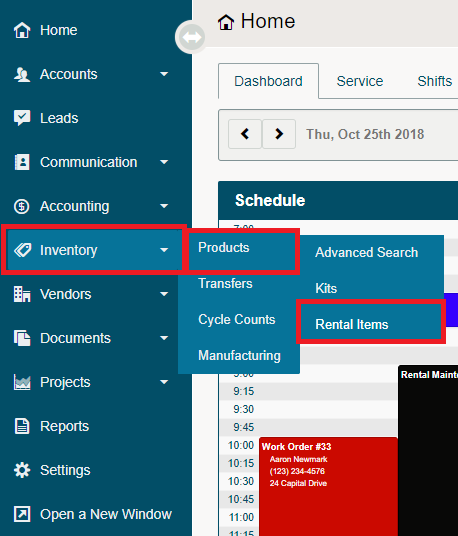
Open the profile of the Rental Product you wish to add a Serial(s) numbers too.
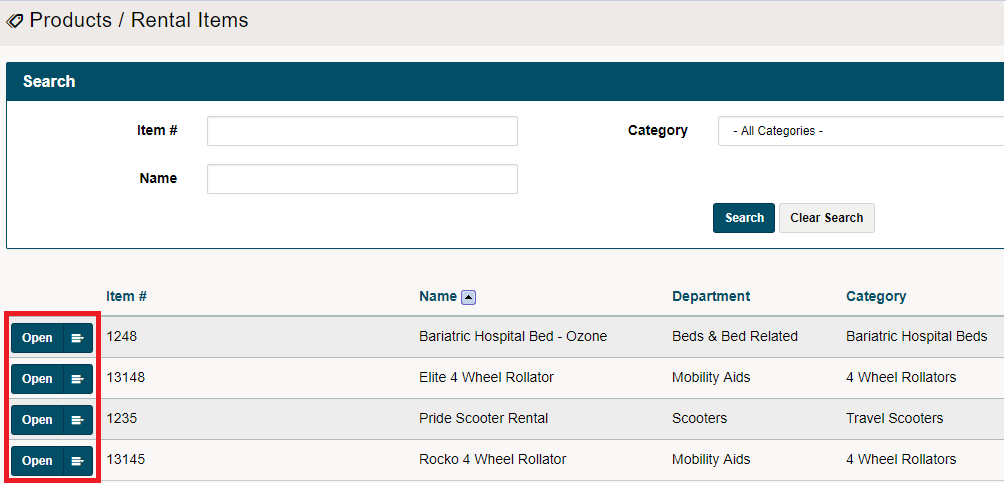
Go to the Rental Tab.

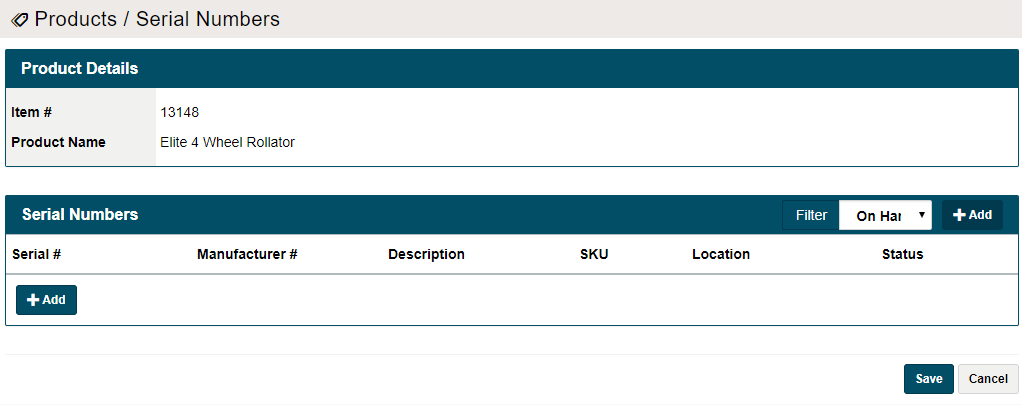
At the bottom of the page, click on [Edit Serials]. This will then allow you to add/edit serial numbers for rental items.

Click on the [+ Add] button in the pop-up window to add Serial Numbers to rental items.
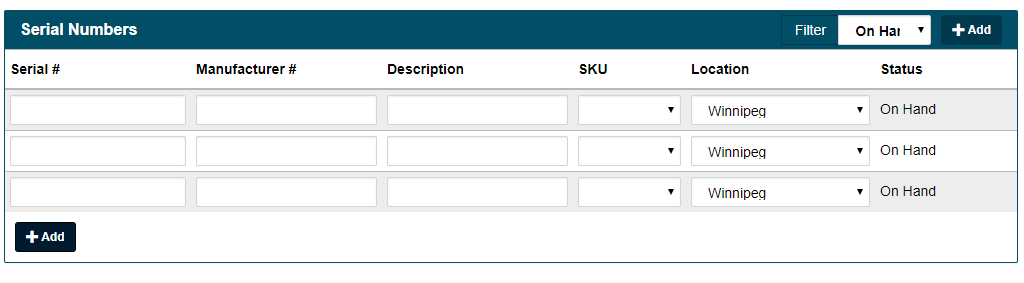
New rows will populate where you can fill out the Serial #, Manufacturer #, Description, SKU, which location the rental product belongs to and the status of the rental item.
Click on the [Save] button. You will now see all Serialized items of the product listed under the profile of the product with their current status.

Comments
0 comments
Please sign in to leave a comment.