
Barcode scanning can drastically create efficiency in your business while decreasing the total amount of inventory and sales errors.
Barcodes have many uses, inside of your GO Business / MEHD system, use barcodes with the following.
- Scan and use existing product barcodes
- Scan items into your orders (invoices, estimates, and P.O's)
- Generate barcodes for your orders
- Scan barcodes to look up their information
Steps - Orders:
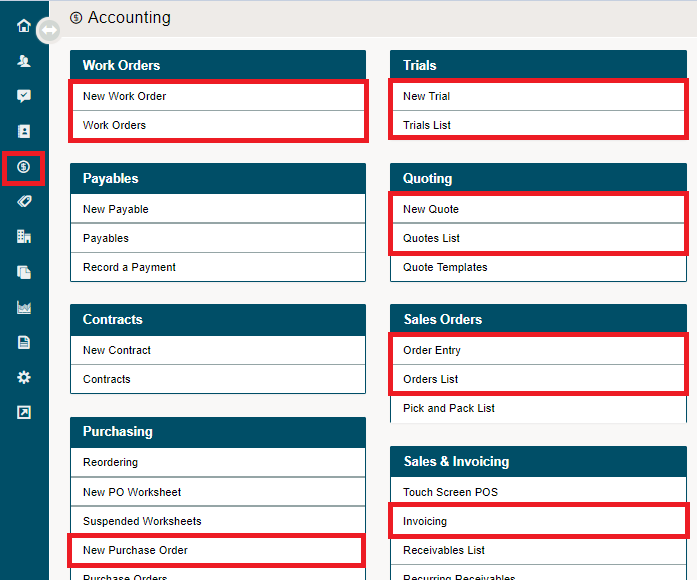
Go to the Accounting module located on the left-hand menu. Select the functionality you wish to use (Quote, Sales Order, Invoice, Purchase Order).
Be sure to enter a customers name.

Click into the first item opening in the row, then use your scanner to scan the barcode. You will notice that the item pops into the first invoice row.
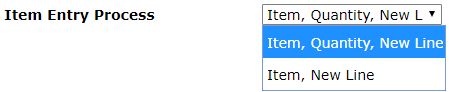
Entry Process - Item, Quantity, New Line
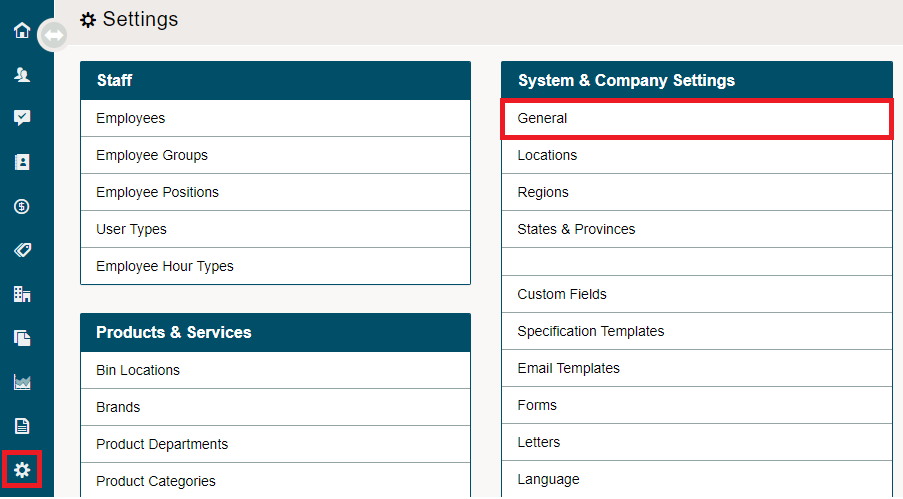
Under System Settings - General, right-hand side toggle between (Item, Quantity, New Line) and (Item, New Line). Depending if you will be adding additional quantities of the product often choose the one that will suit your business scanning process the best.

You will also need to check your scanners settings so that your carriage return is set to populate to the next row.
Scan an additional item it will be placed on the next available row.

Steps - Inventory:
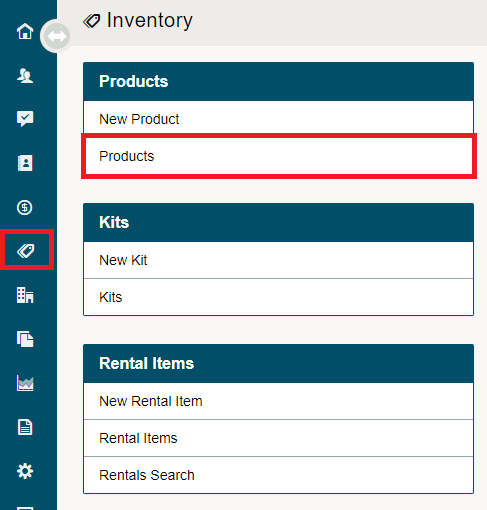
Go to the Inventory module located on the left-hand menu, followed by clicking into the products.
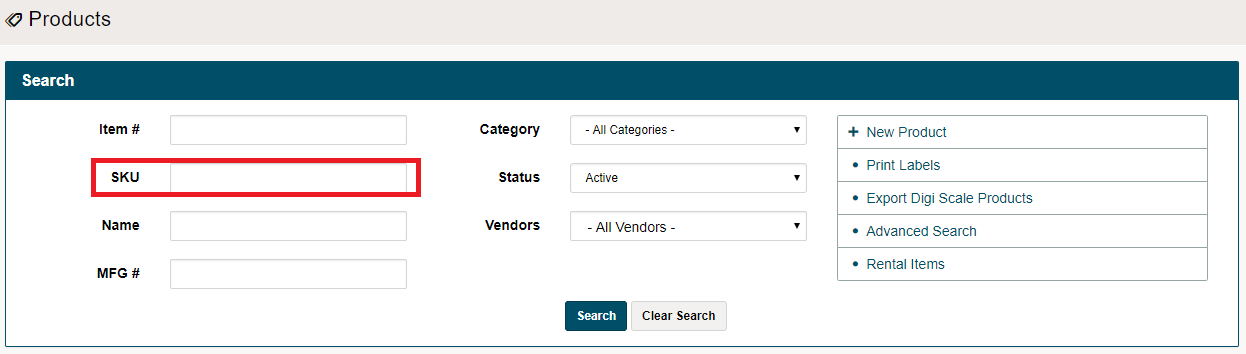
Inside of the Search Bar, click on the SKU # and scan the product. The product will now be listed in the product list below the search bar.
Cycle Counts
Use a wireless scanner with an iPad to complete cycle counts faster. Think of scanners as a fast way to type in the exact product.
How to Add Manufactures SKU to an Item
Comments
0 comments
Please sign in to leave a comment.