
Staff Preferences let each individual staff tailor their display and appointment settings.
Change for Employee - Steps
Go to the System Settings module on the left-hand menu then to the employee's button.

Inside of the list of employees, open the employee's profile you wish to change preferences for.
Once inside of the employee's profile, click on the Preference tab.
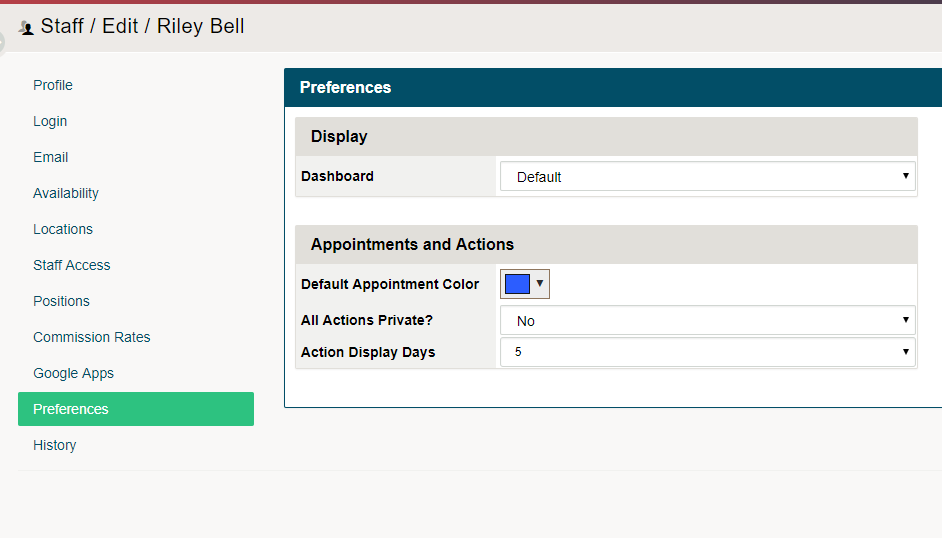
Display
Toggle between the Dashboard display and the Cashier display.
- The Dashboard display - recommended for management, operations, sales, and service-based employees
- Cashier display - recommended for all touch screen POS tills and cashier employees
To learn more about Display Setting click here.
Appointments and Actions
Default Appointment Colour: The default colour of all your appointments on your schedule. It is recommended that as a company all staff have a similar colour selected for a similar task. This helps when
All Actions Private: Selecting yes will show the actions with a display of information being masked as private.
Action Display Day: How many days out do you wish to display (To Do's and Call's) for? In most cases. Once the day passes that the task was assigned to, it will stay displayed until completed or canceled.
Comments
0 comments
Please sign in to leave a comment.