
Create Employee Positions and assign staff to differing positions.
Example
Employee positions can help when an employee can perform differing positions such as at grocery store.
An employee might be able to be a (Till Clerk, Produce Clerk, or a Receiving Attendant) throughout the same week or month depending on the staff schedule.
Creating these positions in the system settings and attaching them to an employee allows the employee to be booked throughout the week to that position.
Steps
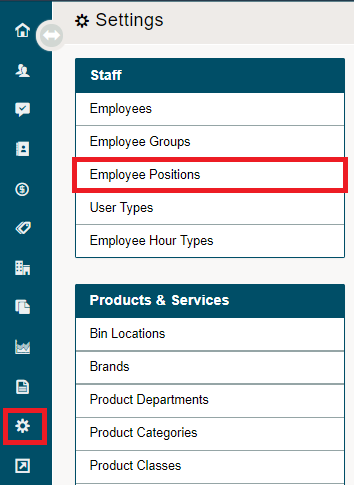
Click on the System Settings module followed by clicking on Employee Positions.
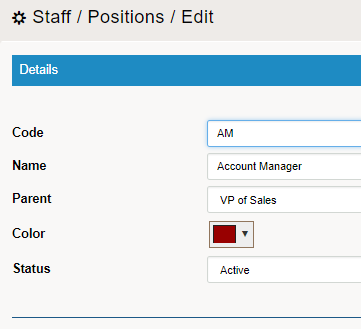
Create a new position.

List the details of the position and the Parent Position. The Parent Position should be the manager that oversees that position, with the top Parent Position being the 'Owner' or 'CEO'.
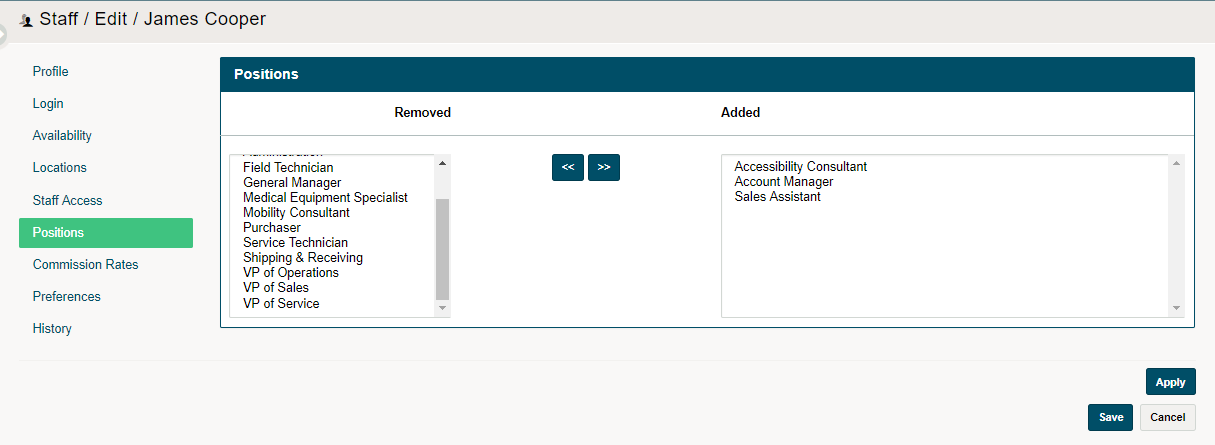
Inside of all employees profiles, add the positions that they can be assigned by highlighting the position and clicking on the [>>] button to add the position to the employee profile. If at any time you would like to add more positions or remove positions, simply select the position and use the arrow keys to add and remove.
Comments
0 comments
Please sign in to leave a comment.