
User Types are used to grant or restrict access to parts of the system. If the user is restricted to the part of the system, the module or functionality will disappear from their interface.
Access may be granted or denied for one of two reasons:
- Security level within your company (your entry-level employees don't need to see all your sales for the past year);
- Job role (service managers may have the same rank as sales managers, both being managers, but to keep each the most efficient, they won't need to see the same things in the system.
Sales managers will want to see leads and sales orders, service managers will want to see work orders, for instance.
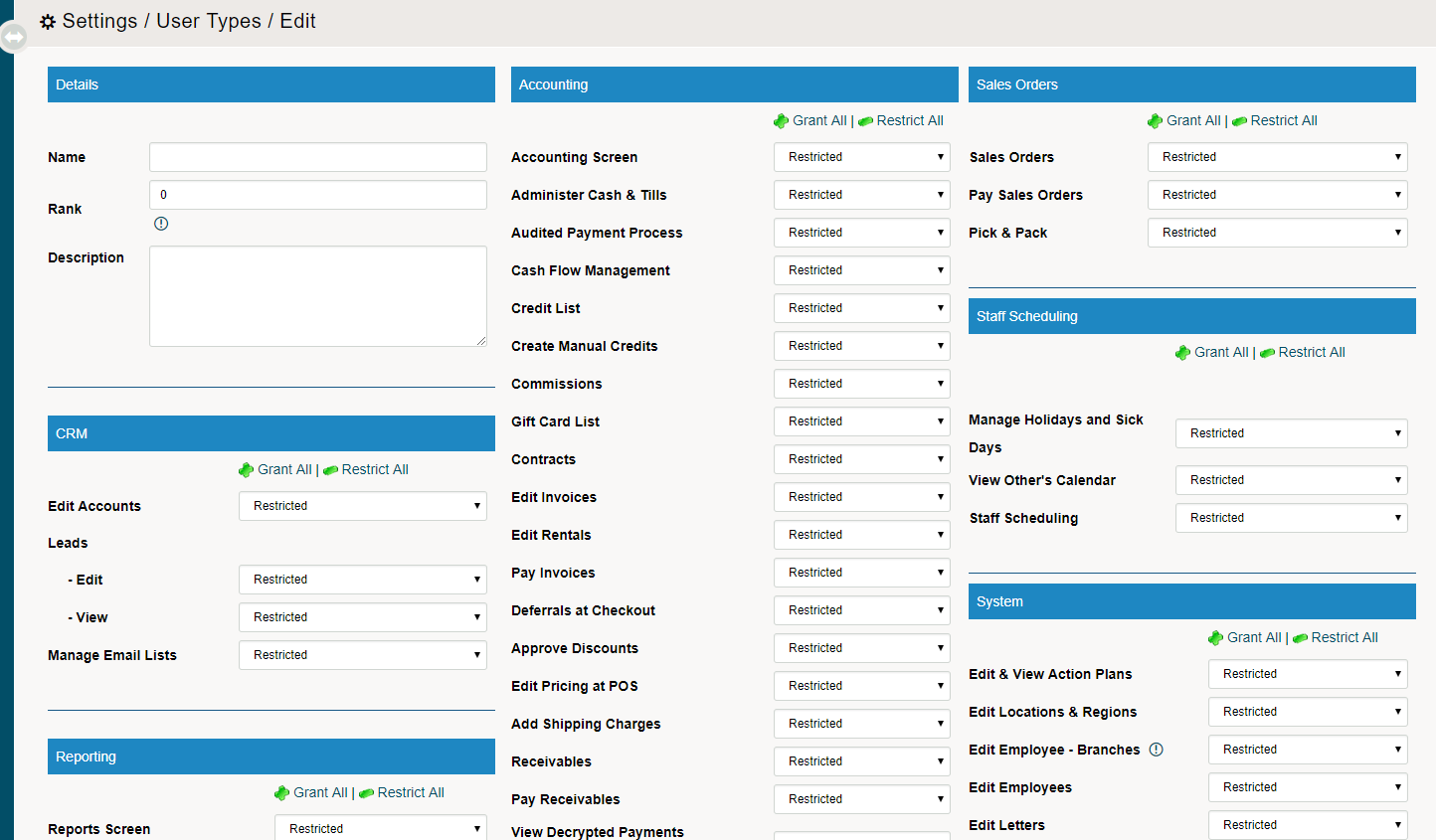
Example:
You want to set up a User Type for all of your sales reps.
You would grant them access to any function and report which would keep them productive and efficient, but restrict access to items they wouldn't need to see. For example, a sales rep may want to know if some items are in stock, so you might grant access to inventory. However, the same sales rep doesn't need to know your company's sales numbers for last year, so you would restrict that information.
As you go through all of the items in User Types, decide, for that job role or security level, if it is necessary to grant access/visibility or not, and when you're done, choose Save.
How to Set Up User Types
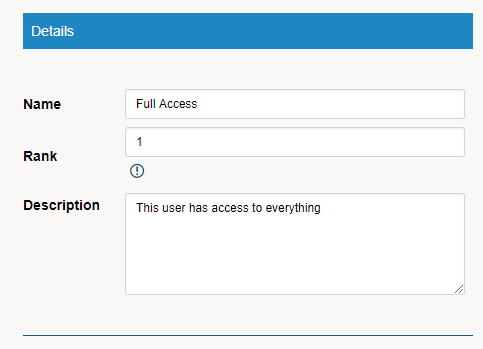
Details
1 - Give the User Type a name. Often this can be the same as the position (Sales, Service, Operations) that user is in and the level (Service Tech, Sales Manager).
2 - Assign a rank - Ranking gives a visual display of which user types have higher access than others. It also determines which employee records you have access to edit if you have access to edit employees, as well as determines what user types you are allowed to adding them (user types with lower rank then your own).
3 - Add a description to know exactly what the User Types functions and tasks are.
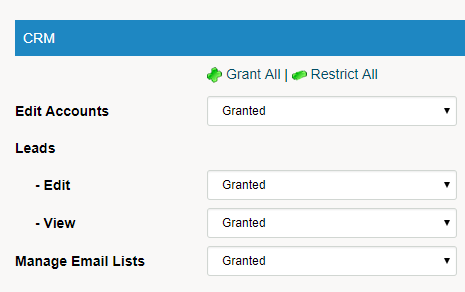
CRM
Edit Accounts - Should the user be able to edit any customers or accounts in your system?
Leads - Does the user need to access leads? Most service techs don't need to see leads.
- Edit
- View
Manage Email Lists - Does the user need to add to and edit the email list? This is best set for sales managers and your marketing team.
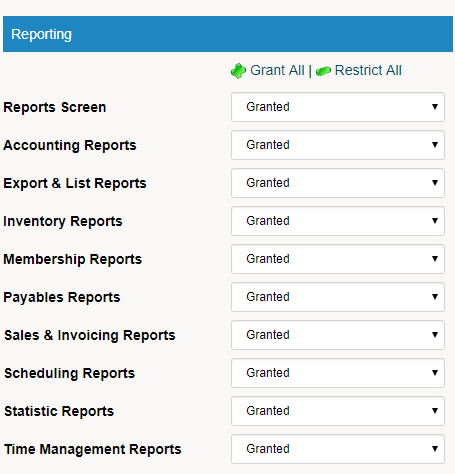
Reporting
Reports Screen - Does the user need to access reporting? Most front-line employees don't need reporting features, but your managers and executives might spend the vast majority of their day using reports.
Accounting Reports - Does the user need access to: Day End, AR Statements, Aged AR, Backdated Receivables, Cash Flow, Credit Memos, Customer Statement, Dated AR, Expenses, Email AR Statements, Email Customer AR Statements, Income Statements, Print Paid Invoices, Print Receivable Invoices, Payments Received, Receivable Listing, Finance Charges.
Export & List Reports - Contact List, QuickBooks, Sage 50, Vendor Lists, Idealware and Transfer Files
Inventory Reports - Cost Changes, Cycle Count Statistics, Inventory Value, Product History, Received Inventory, Serial Numbers, Transfers.
Membership Reports - Does your company have memberships? If not restricted to pull this feature off the screen and make the user's system more streamlined.
Payables Report - Payables By Date, Payable Payments, Purchases From Vendor, Taxes Paid
Sales & Invoicing Reports - Comprehensive Sales, Account Invoices, Customer Rentals, Employee Sales, Quotes, Sales Journal, Sales Orders, Taxes Collected, Transactions, Vendor Sales, Statistics, Sales Leads Detailed Report, Active Quotes, Commissions By Employee, Discount By Date, Print Sales Orders, Recurring Receivables, Suspended Transactions
Scheduling Reports - When your employees shifts are scheduled for
Statistic Reports - Average Sale, Account Change History, Comprehensive Leads, Login History, Loyalty Points, Non-Selling Items, Products On Sale, Purchase Order Reasons, Sales Trends, Top Selling Items
Time Management Reports - Employee Hours, Employee Schedules, Project Tickets, Project Outcomes, Ticket Hours
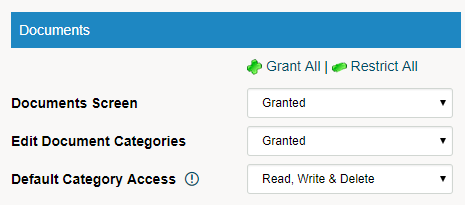
Documents
Documents Screen - Ability to use the documents module.
Edit Document Categories - Should the user be able to edit document categories from their original form set up by the system administrator. Will this user type be able to create new document categories and change the folder structure.
Default Category Access - What access should all user types have set to default when creating document folders and individual documents. This can be overridden at the time of document or folder creation.
- Read Write & Delete
- Read & Write Only
- Read Only
- No Access
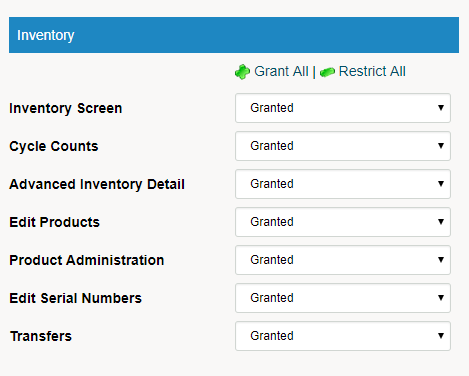
Inventory
Inventory Screen
Cycle Counts
Advanced inventory Detail
Edit Products
Product Administration
Edit Serial Numbers
Transfers
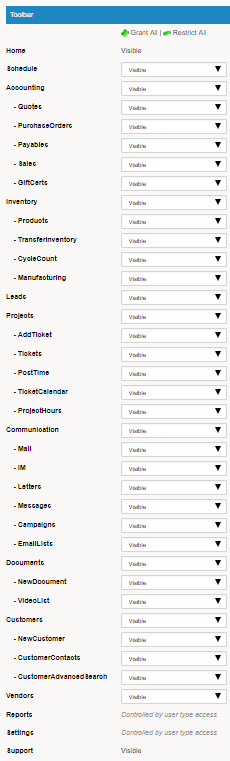
Toolbar
What modules will the user see on the left-hand side toolbar. The user type must have access at this point to further access the functionality inside of the module. If the module is turned off in master settings, it will override the ability to allow users to access the module.
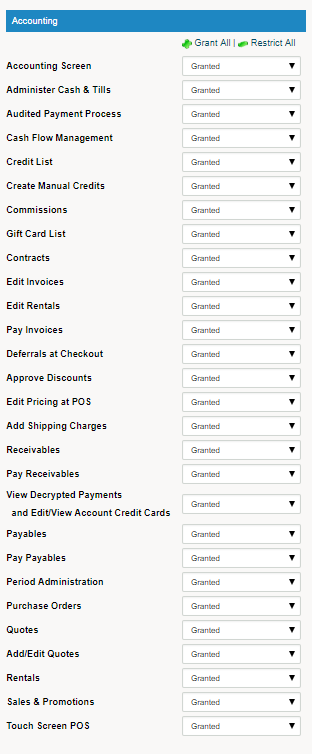
Accounting
Accounting Screen
Administer Cash & Tills
Audited Payment Process
Cash Flow Management
Credit List
Create Manual Credits
Commissions
Gift Card List
Contracts
Edit Invoices
Edit Rentals
Pay invoices
Deferrals at Checkout
Approve Discounts
Edit Pricing at POS
Add Shipping Charges
Receivables
Pay Receivables
View Decrypted Payments
Pay Payables
Period Administration
Purchase Orders
Quotes
Add/Edit Quotes
Rentals
Sales & Promotions
Touch Screen POS
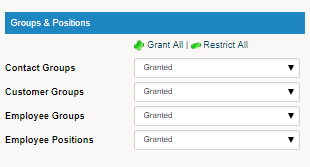
Group & Position
Contact Groups
Customer Groups
Employee Groups
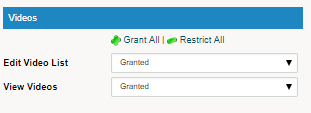
Videos
Edit Video List
View Videos
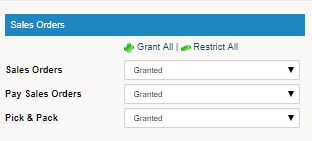
Sales Orders
Sales Orders
Pay Sales Orders
Pick & Pack
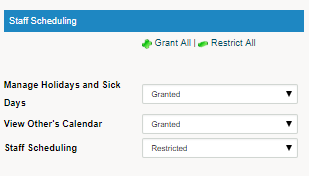
Staff Scheduling
Manage Holidays and Sick Days
View Other Calendars
Staff Scheduling
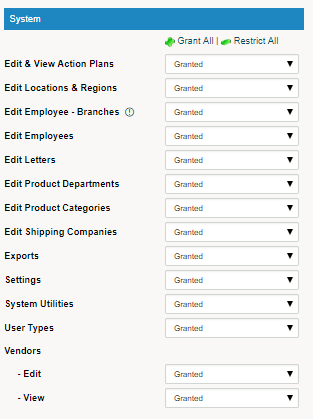
System
Edit & View Action Plans
Edit Locations & Regions
Edit Employee - Branches
Edit Employees
Edit Letters
Edit Product Departments
Edit Product Categories
Edit Shipping Companies
Exports
Settings
System Utilities
User Types
Vendors
- Edit
- View
Projects
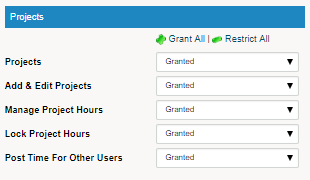
Projects - Will the user be involved in projects? and will your staff be using the project module? Remember you can always turn it on at a later time.
Add & Edit Projects - Is the user allowed to create new projects along with the tickets for the project?
Manage Project Hours - Who can manage project hours, Managers? Foremen? or do you let front-line employees manage hours.
Lock Project Hours -
Post Time for Other Users - Managers or user can post time of hours spent on a project for other employees
Comments
0 comments
Please sign in to leave a comment.