
As you might sell and purchase from foreign countries, you will have to adjust dollar amounts for costs and prices to reflect that of the country you are completing business in.
You can set as many foreign currencies as you like, and define the exchange rate as often as you like.
It is best practice to adjust the foreign exchange rate once per month to match that of the fluctuating exchange rate.
Note: Prices can be adjusted on the fly when invoicing or creating purchase orders
Example
Code: USD
Name: USD
Rate: 1.3100
This means that all products can be imported in USD, as well as converted to USD. This will help when it comes time to create a Purchase Order or sell products that have been imported.
Steps - Settings
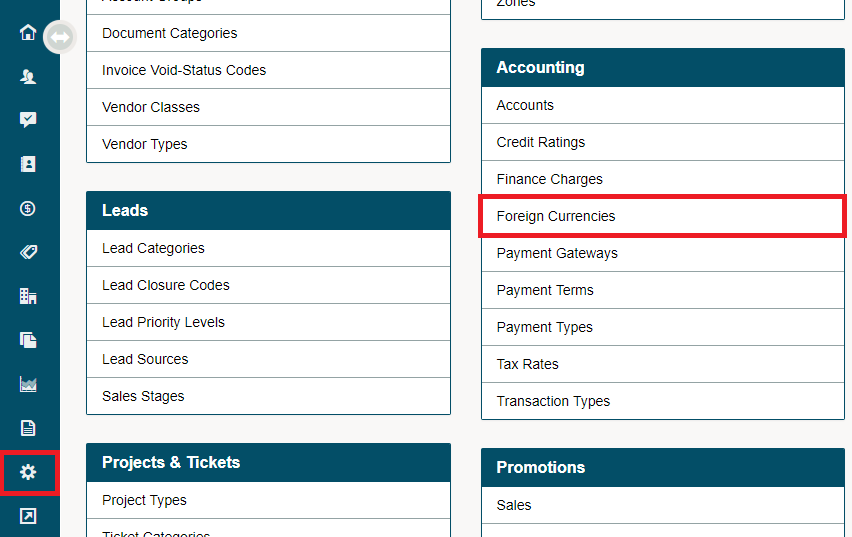
Go to the Settings module. Under the Accounting Heading, choose Foreign Currencies.
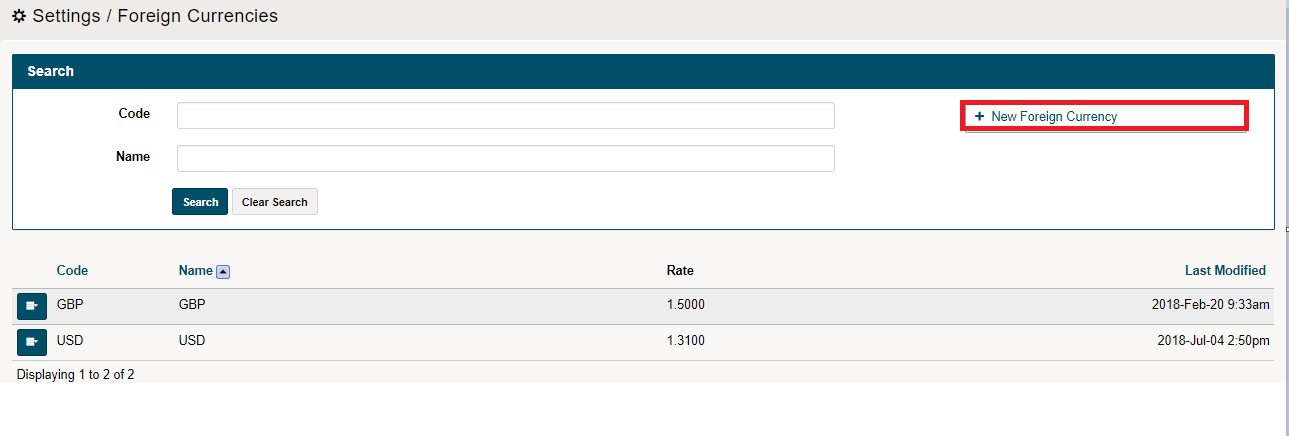
Click on the (+ New Foreign Currency) button.
Give the currency a Code, such as, "USD" or "GBP". "CDN" automatically comes in your GO Business / MEHD system and will be the default currency.
After creating the Code and Name for the currency, list the current exchange rate with the currency from CDN.
Define the exchange rate compared to the Canadian Dollar. For example, if it takes $1.35 Canadian to purchase $1.00 USD, you would enter 1.35.
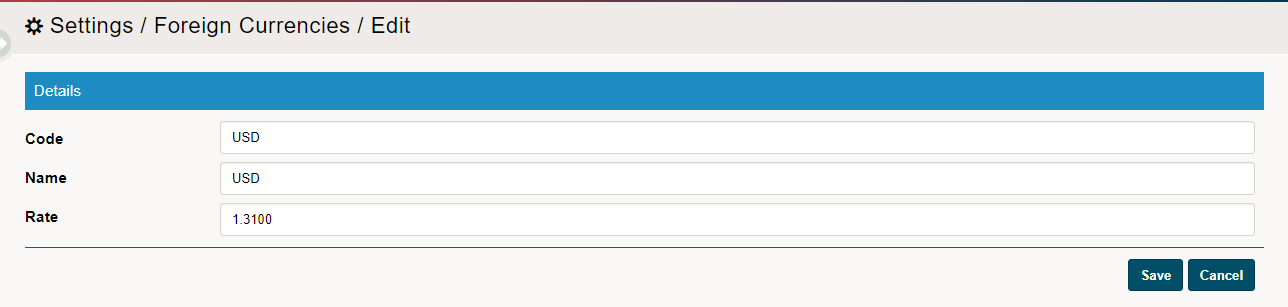
Finish by clicking on the save button. Under the Foreign currencies, you will now see a list of currencies that you can accept in your GO Business / MEHD system.
Steps - Product Profile
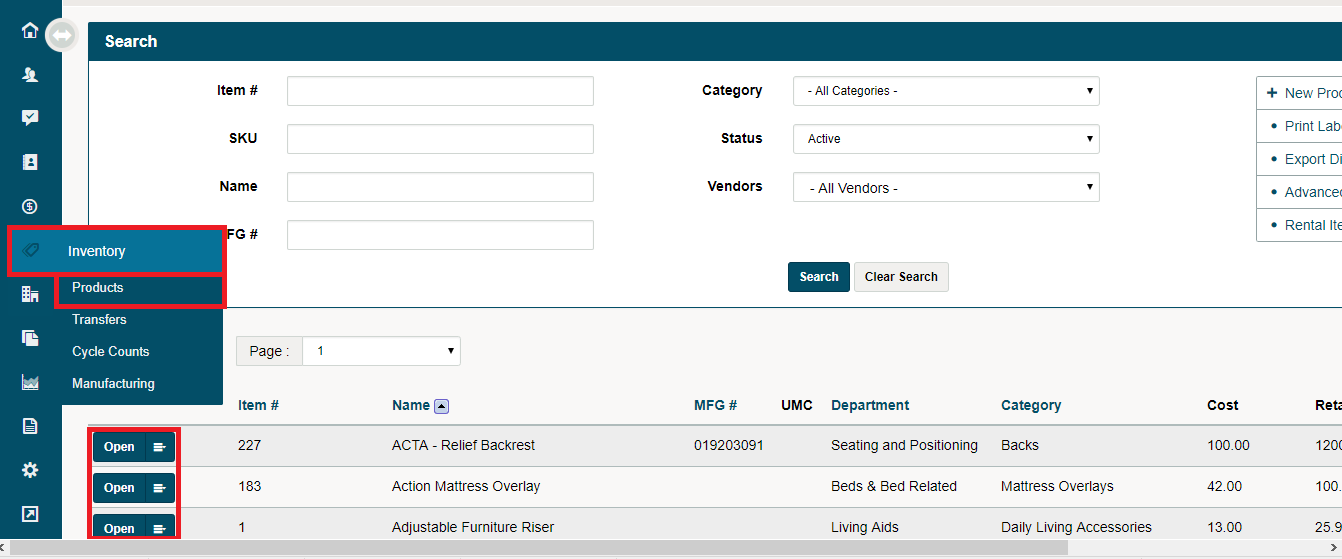
Hover over the Inventory module, followed by clicking on Products. This will bring you to a list of all you sellable inventory. From there, open the profile of the product you wish to adjust the foreign currency for.
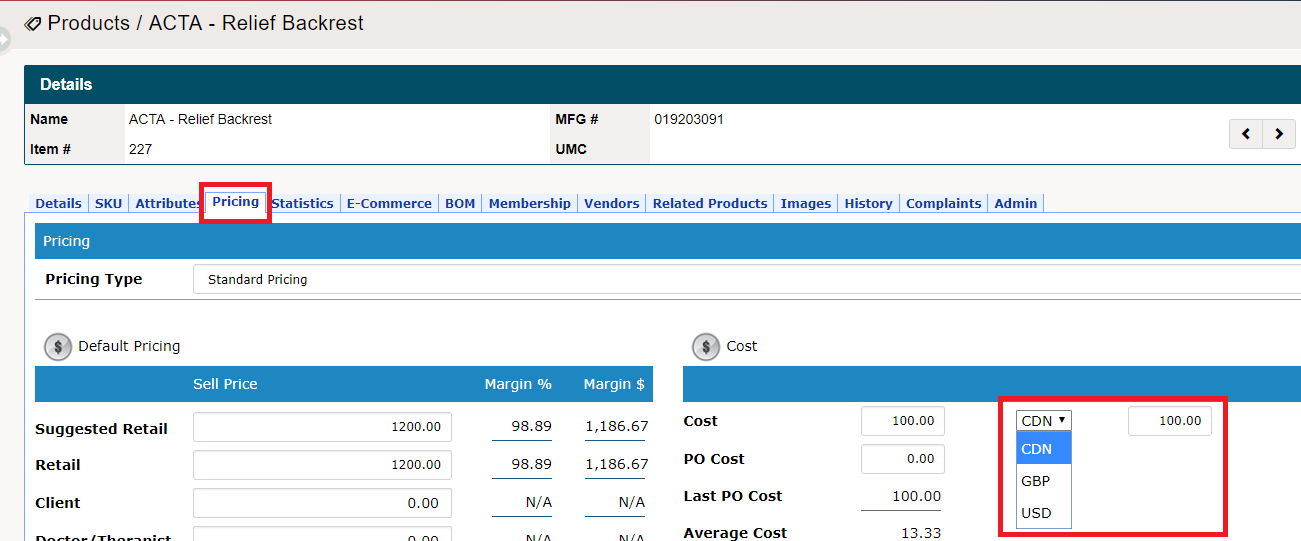
Click on the Pricing Tab. On the right side, you will see the ability to change the foreign currency under the Cost heading. Use the drop-down to change the currency you will purchase the product in, this, in turn, will adjust the cost of the product.
Steps - Product Import
When setting up products that are manufactured or sold by a vendor that deals in foreign currencies, make use to currency column to adjust the currency for the exact product. This will then adjust the cost of the product in CDN.
Prior to selecting the currency for products in the excel sheet, you will need to set up all of the foreign currencies that you will be using.
Comments
0 comments
Please sign in to leave a comment.