
Payment Gateways are used to integrate directly to payment providers such as (Stripe, Charge It Pro, Payment Tree and Moneris).
Setting up a payment gateway will also allow for the automation of payments, which saves time and errors when having to double enter payments on a terminals pin pad.
Steps
Navigate to Settings, and click on Payment Gateways under the Accounting heading.
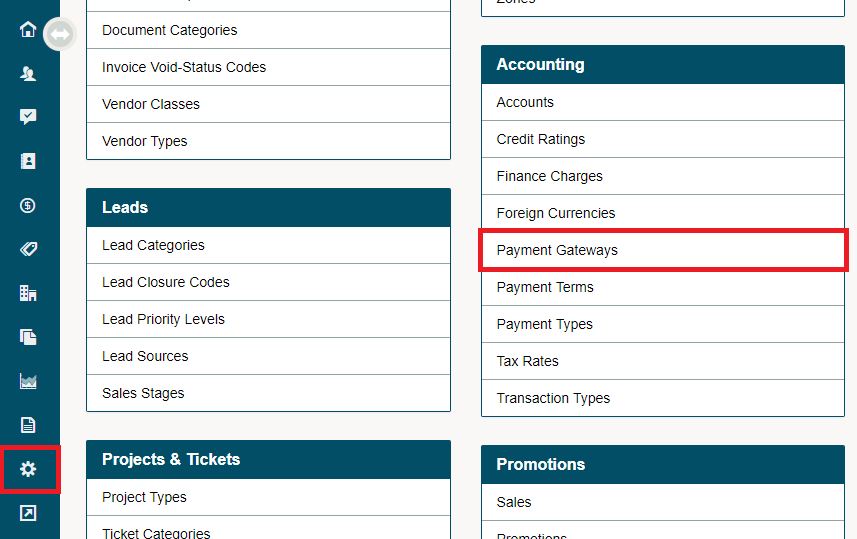
Create a New Payment Gateway

Select the following detail fields:
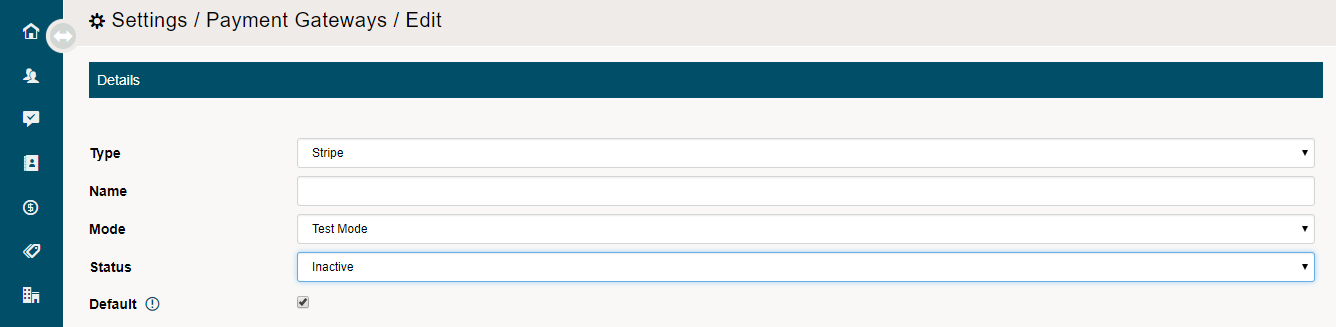
a) Type: (ChargeItPro, Moneris USA, Moneris CAN, Paymentree, PNC Payeezy, Stripe)
b) Name - Name of the payment gateway
c) Mode - select test mode to test, production mode to push live payments
d) Status - select inactive if the payment gateway is not being used, active if the gateway is in use
e) Default - one default payment gateway can be selected. If selected, all other payment gateways will be no longer be set as default
Fill out the following fields for Production Mode OR Test Mode:
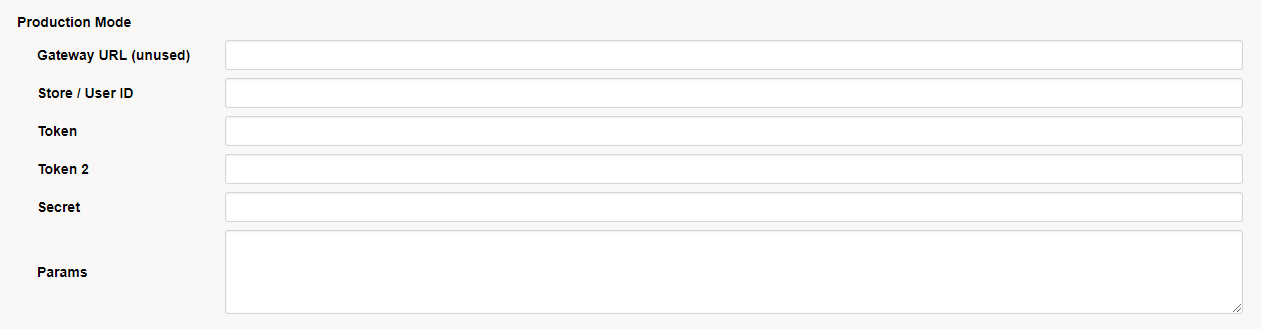
a) Gateway URL - unique company URL from payment provider
b) Store / User ID - unique ID for your company provided by the payment processor
c) Token - unique token for your company provided by the payment processor. Usually consists of letters and numbers
d) Token 2 - unique token for your company provided by the payment processor. Usually consists of letters and numbers
e) Secret - unique secret token for your company provided by the payment processor. Usually consists of letters and numbers
f) Params - The parameter the error relates to if the error is parameter-specific. You can use this to display a message near the correct form field, for example.
6. Finish by clicking on Save.
Note: You must also set up a Till Code in Settings > Tills for each individual till you have.
- Go to Settings.
- Under the System & Company Settings Heading, choose Tills.
- For each Till, choose a simple code to be used by the Payment Gateway. For example, for Till 1, use T1.
Reminder: Be sure to change to the correct mode (Test Mode / Production Mode) as well as setting the status to (Active).
Comments
0 comments
Please sign in to leave a comment.